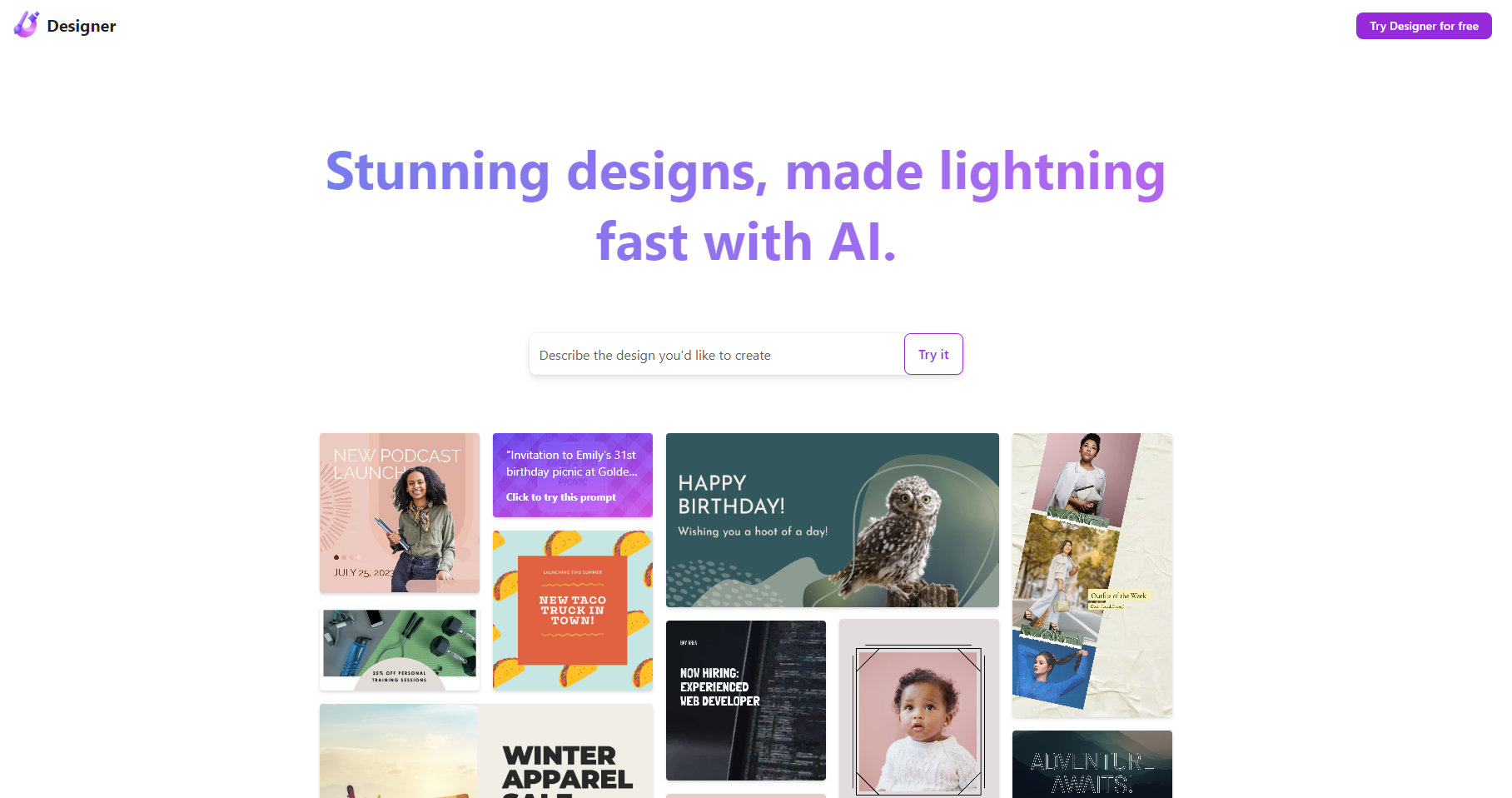
Microsoft Designer for Web
Create Stunning Designs with Microsoft Designer App for Social Media, Invitations, and More Are you looking to elevate your design game? The Microsoft Designer app is your go-to tool for creating eye-catching visuals effortlessly. Whether you need graphics for social media, invitations for special events, or promotional materials, this app has you covered. With its user-friendly interface, Microsoft Designer allows you to unleash your creativity without any design experience. Choose from a variety of templates tailored for different occasions, ensuring your designs stand out. Key Features of Microsoft Designer: - **Versatile Templates**: Access a wide range of customizable templates for social media posts, invitations, and more. - **Intuitive Design Tools**: Utilize easy-to-use tools that help you create professional-looking designs in minutes. - **High-Quality Graphics**: Enhance your projects with high-resolution images and graphics that capture attention. - **Seamless Sharing**: Share your designs directly to social media platforms or download them for printing. Start creating stunning designs today with the Microsoft Designer app and make your projects shine!
AI Project Details
Microsoft Designer review: AI-assisted graphics for everyday visual content
Microsoft Designer is a web-based graphic design app for creating social media posts, invitations, digital postcards, graphics, and image edits with AI assistance. The current Designer landing page describes professional-quality visual creation from an idea. Microsoft's support page says Designer helps users create graphics with little or no design experience, use templates or inspiration, start from scratch, enhance designs with AI-powered suggestions and layout recommendations, save work in the app, and share or integrate designs into presentations, documents, emails, and other workflows. The same support page also notes that access to the legacy visual editor is being deprecated on October 20, 2025, with migration to a new editor and changes to brand kits and stock videos.
The strongest fit is a Microsoft-account user, student, marketer, small business owner, or office worker who needs polished visuals quickly without learning a full design suite. It is less ideal for teams that need advanced brand systems, print production controls, or enterprise-grade creative operations.
Best-fit use cases
| Use case | Fit | Notes | |---|---:|---| | Social media graphics | High | Core examples include social posts and visual templates. | | Invitations and postcards | High | Microsoft lists invitations and digital postcards as use cases. | | Quick image editing | Medium to high | Designer is used as an online AI editing experience. | | Office-adjacent visuals | Medium to high | Support page mentions sharing into presentations, documents, and emails. | | Advanced brand production | Medium | Legacy brand kit changes require care. |
Core workflow
A practical Microsoft Designer workflow starts with a clear prompt or template search, generates design directions, edits layout and text, checks image accuracy and brand fit, exports or shares into the target Microsoft or social workflow, and keeps a backup of important brand assets during the legacy editor migration period.
What users should verify
Users should verify account requirements, regional availability, Microsoft 365 plan requirements, export formats, commercial-use terms, AI image rights, prompt safety rules, privacy behavior, brand-kit migration status, stock video availability, template quality, image editing limitations, accessibility, text readability, and whether the output can be edited downstream in PowerPoint, Word, or other tools.
Strengths
- Simple AI-assisted design workflow for non-designers.
- Strong fit for Microsoft users who want visuals for documents, emails, and presentations.
- Useful for social posts, invitations, postcards, and quick graphic concepts.
- Official support documentation gives clear migration notes for legacy editor users.
Limitations
- Some legacy editor features are being deprecated, including old brand kit access and stock video behavior.
- Not a replacement for advanced tools such as Illustrator, Photoshop, or full brand management platforms.
- AI-generated images and designs need rights and quality review before commercial use.
- Enterprise availability and governance may differ from personal-account use.
Bottom line
Microsoft Designer is best for quick, AI-assisted everyday graphics inside the Microsoft ecosystem. It works well for practical visual tasks, but teams should verify terms, account requirements, and migration changes before making it part of a formal brand workflow.
Sources reviewed: Microsoft Designer, Microsoft Designer support.
FAQ
What is Microsoft Designer best for?
Microsoft Designer is best for quickly creating AI-assisted social posts, invitations, digital postcards, graphics, image edits, and visual assets for everyday Microsoft workflows.
Does Microsoft Designer require design experience?
Microsoft Support says Designer helps users create professional-quality graphics with little or no design experience, using AI assistance, templates, and layout suggestions.
What should users check before relying on Microsoft Designer?
Users should check account requirements, plan availability, export formats, commercial-use terms, AI image rights, privacy behavior, brand-kit migration, stock video changes, and whether outputs fit their brand workflow.